

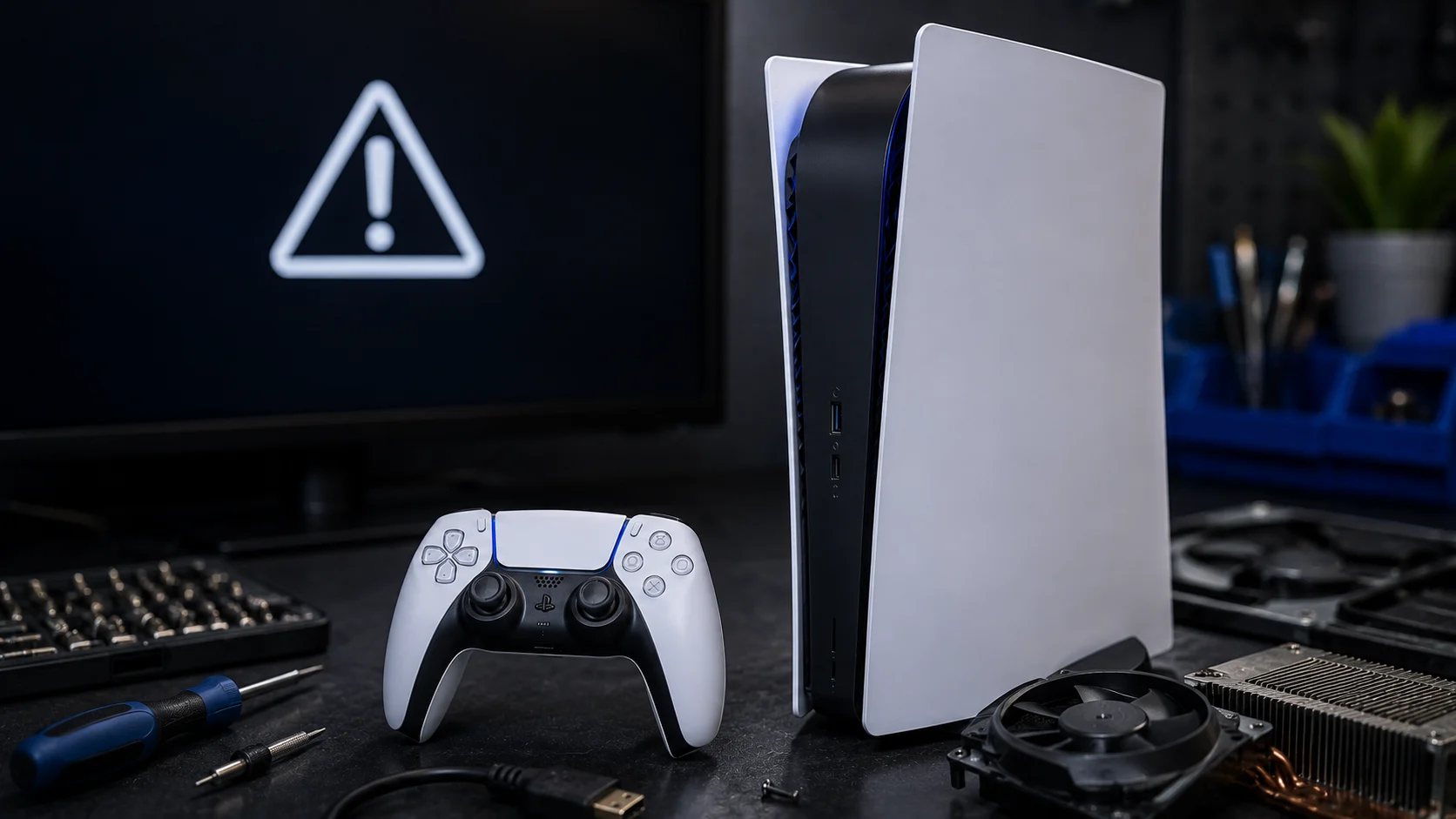
Black Screen or No HDMI Signal
This is the most common PS5 complaint. You turn on the console, the power light comes on, but the TV shows nothing.
Start with the cable. Unplug the HDMI cable from both ends, inspect the connectors for bent pins, and plug it back in firmly. If you have a spare HDMI cable, swap it in. HDMI cables fail internally more often than people realize, and a $10 cable swap fixes the problem in a good number of cases.
Next, try a different HDMI port on your TV. Individual ports can die. Also test with a different TV or monitor entirely. If the PS5 displays on another screen, the issue is your TV’s HDMI input, not the console.
If neither fixes it, boot into Safe Mode. Turn the PS5 off completely (not rest mode). Hold the power button until you hear a second beep (about 7 seconds). Connect your controller via USB and press the PS button. From Safe Mode, select “Change Resolution” and set it to Automatic.
Still no display after all of that? The HDMI port on the console may be physically damaged. Look inside the port with a flashlight for bent pins, a wobbly housing, or burn marks. If you see any of those, the port needs to be replaced at the board level. We’ve written a full breakdown of HDMI failure signs to look for.
PS5 Won’t Turn On
If there’s no beep and no light when you press the power button, the console isn’t receiving power or the power supply has failed.
Unplug the power cable from the back of the PS5 and from the wall outlet. Wait 30 seconds. Plug it directly into a wall outlet (not a power strip or surge protector, as some can restrict the wattage needed). Press the power button.
If it still won’t turn on, try a different power cable if you have one. The PS5 uses a standard IEC C7 (figure-8) cable.
If the console still shows no sign of life, the internal power supply unit or the APU may have failed. This is a board-level repair, not something you can troubleshoot further at home.
Controller Drift
If your DualSense controller moves the camera or character on its own without you touching the analog stick, you have stick drift. This is a hardware wear issue with the potentiometers inside the joystick module.
A temporary fix: press the small reset button on the back of the controller using a paperclip. Hold it for 5 seconds, then re-pair the controller to the PS5 via USB. This recalibrates the stick input and can reduce mild drift.
For more persistent drift, you can clean around the base of the analog stick with isopropyl alcohol (90% or higher). Gently lift the stick and apply a small amount around the edges, then rotate the stick in circles to work it in. Let it dry completely before using.
If drift returns after cleaning, the joystick module itself is worn out and needs to be replaced. This involves opening the controller and desoldering the old module, so it’s a repair rather than a DIY fix unless you’re comfortable with soldering.
Overheating and Loud Fan Noise
The PS5’s fan runs louder when the console is working harder to cool itself. Some fan noise is normal, especially during graphically demanding games. But if the fan sounds like a jet engine constantly, or if the console shuts itself down with a heat warning, there’s a ventilation or dust problem.
Check the basics first. Make sure the console has at least 6 inches of clearance on all sides, especially around the exhaust vents on the back. Remove anything sitting on top of the console. If it’s inside a closed media cabinet, the heat has nowhere to go.
If airflow is fine, dust buildup inside the console is likely the cause. The PS5’s side panels pop off without tools. Remove them and use compressed air to blow out any visible dust from the fan and heatsink area. Do this outdoors or in a well-ventilated area.
For deep cleaning (which requires opening the console further to access the heatsink and fan assembly), professional cleaning is the safer route if you’re not comfortable disassembling the console.
USB Ports Not Working
If your controller won’t charge when plugged into the front USB ports, or if external drives aren’t recognized, test with a different USB cable first. Many USB-C cables are charge-only and don’t carry data, which means they won’t work for controller firmware updates or storage connections.
Try both front USB ports. If one works and the other doesn’t, that specific port may have a hardware issue. Also try the rear USB-A port for controller charging.
If no USB ports respond at all, boot into Safe Mode and select “Rebuild Database.” This can fix software-level detection issues without erasing your games or saves.
PS5 Repairs at Our Shop
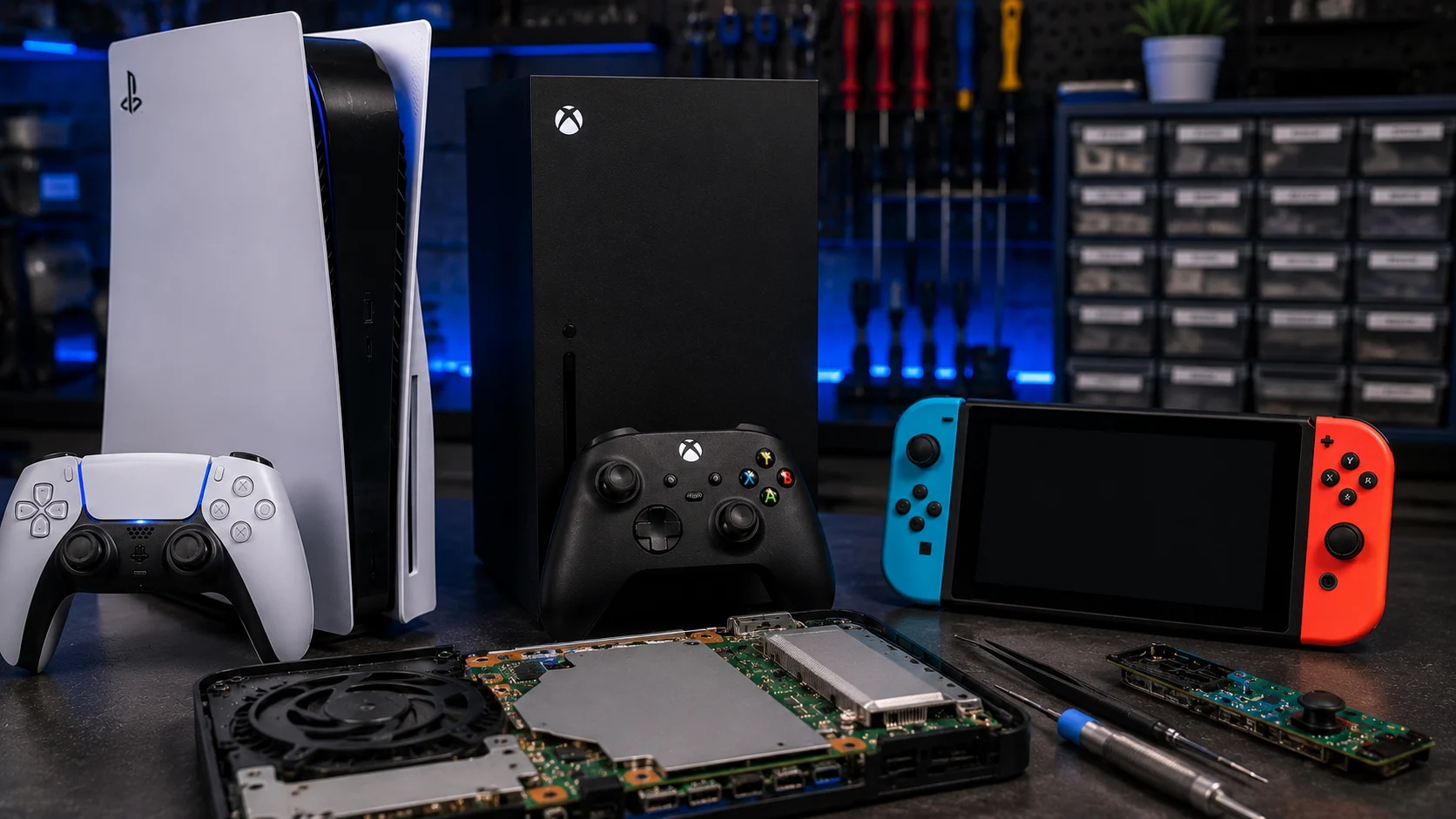
Console repairs are a core part of what we do at our Albuquerque game console repair shop. HDMI port replacements, power supply fixes, and stick drift repairs are all handled in-house with the same board-level soldering capability we use for phone repairs.
If your PS4 is having similar HDMI issues, we’ve covered troubleshooting for that here. For either console, walk in or schedule a free diagnostic. We’ll tell you exactly what’s wrong before you commit to anything.