

Turning Your iPhone Into a Hotspot
Personal Hotspot turns your iPhone’s cellular data connection into a Wi-Fi network that other devices can connect to. This is useful when you don’t have access to Wi-Fi, like when you’re traveling, working from a location without internet, or if your home Wi-Fi goes down.
Here’s how to set it up and what to do if it’s not working.
Enable Personal Hotspot
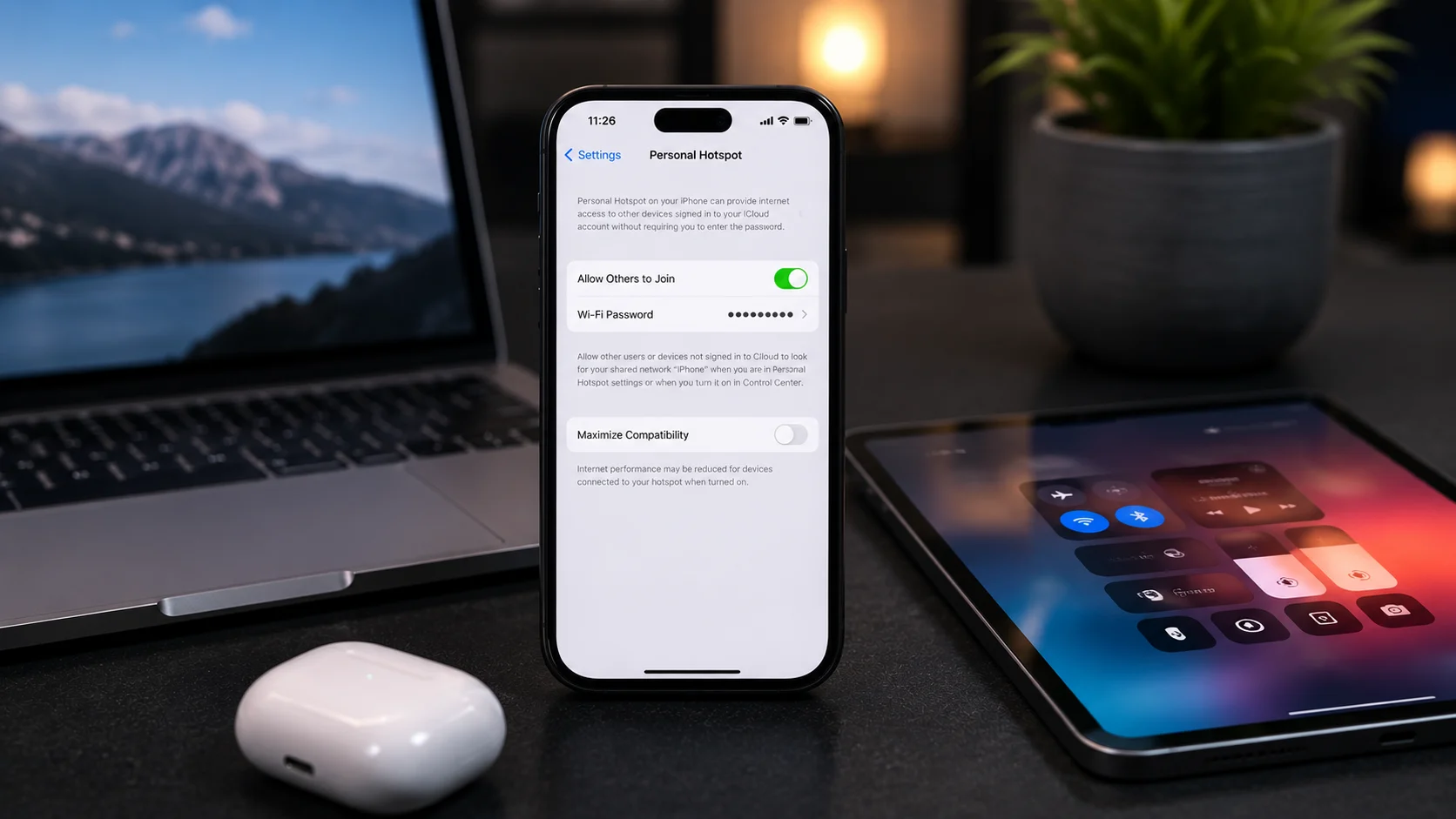
Open Settings > Personal Hotspot (or Settings > Cellular > Personal Hotspot on some iOS versions). Toggle “Allow Others to Join” to on.
Your iPhone will display a Wi-Fi password on that same screen. On the device you want to connect (laptop, tablet, another phone), open Wi-Fi settings, find your iPhone’s name in the network list, and enter the password.
That’s it. The connected device now uses your iPhone’s cellular data for internet access.
Choose Your Connection Method
There are three ways other devices can connect to your iPhone’s hotspot:
Wi-Fi: The most common method. The other device connects wirelessly, just like joining any Wi-Fi network. Range is about 30 feet.
Bluetooth: Lower power consumption but slower speeds. Pair the devices through Bluetooth settings first, then enable the hotspot. This works best for light browsing, not streaming or large downloads.
USB: Connect your iPhone to a laptop with a Lightning or USB-C cable. The laptop will automatically detect the hotspot. This gives you the fastest, most stable connection and charges your iPhone at the same time.
If Personal Hotspot Isn’t Showing Up
Some carrier plans don’t include hotspot access, or it needs to be activated separately. If the Personal Hotspot option is missing from your Settings entirely, contact your carrier. They may need to enable the feature on your account.
If the toggle is there but grayed out, try restarting your iPhone. If it’s still grayed out after a restart, go to Settings > General > Transfer or Reset iPhone > Reset > Reset Network Settings. This clears all network configurations and often fixes the issue (but also removes saved Wi-Fi passwords).
If Devices Can’t Find Your Hotspot
Make sure “Allow Others to Join” is toggled on. Stay on the Personal Hotspot screen while the other device searches for the network, as iPhones can stop broadcasting the hotspot if you navigate away from that screen.
If the hotspot name doesn’t appear in the other device’s Wi-Fi list, toggle Airplane Mode on and off on the iPhone, then re-enable Personal Hotspot.
Managing Data Usage
Hotspot data draws from your cellular plan. A laptop connected to your phone’s hotspot can burn through data quickly, especially with cloud syncing, automatic updates, and streaming running in the background.
To manage this, turn on Low Data Mode (Settings > Cellular > Cellular Data Options > Low Data Mode) while using the hotspot. On the connected laptop, disable automatic downloads and cloud syncing temporarily. And if you’re using the hotspot for video calls or streaming, be aware that an hour of video streaming can use 1 to 3 GB depending on quality.
When Hotspot Hardware Fails
If your hotspot worked before but suddenly stopped and none of the troubleshooting above fixes it, the issue could be a failing cellular radio or antenna. Drops and impacts can loosen the antenna connector inside the phone without any visible external damage.
Our Albuquerque technicians can run a cellular hardware diagnostic to check whether the radio and antenna are functioning correctly. If there’s a hardware issue, it’s repairable in-house. Reach out here.