

When You Need to Restore
You’ll need to restore your iPhone from a backup after a factory reset, after getting the phone repaired and wiped, when setting up a new iPhone, or when recovering from a major software issue. The process puts your photos, apps, messages, settings, and accounts back on the phone.
There are three ways to do it, depending on how you originally backed up.
Restore from iCloud Backup
This is the most common method since iCloud backups happen automatically when your iPhone is connected to Wi-Fi and charging.
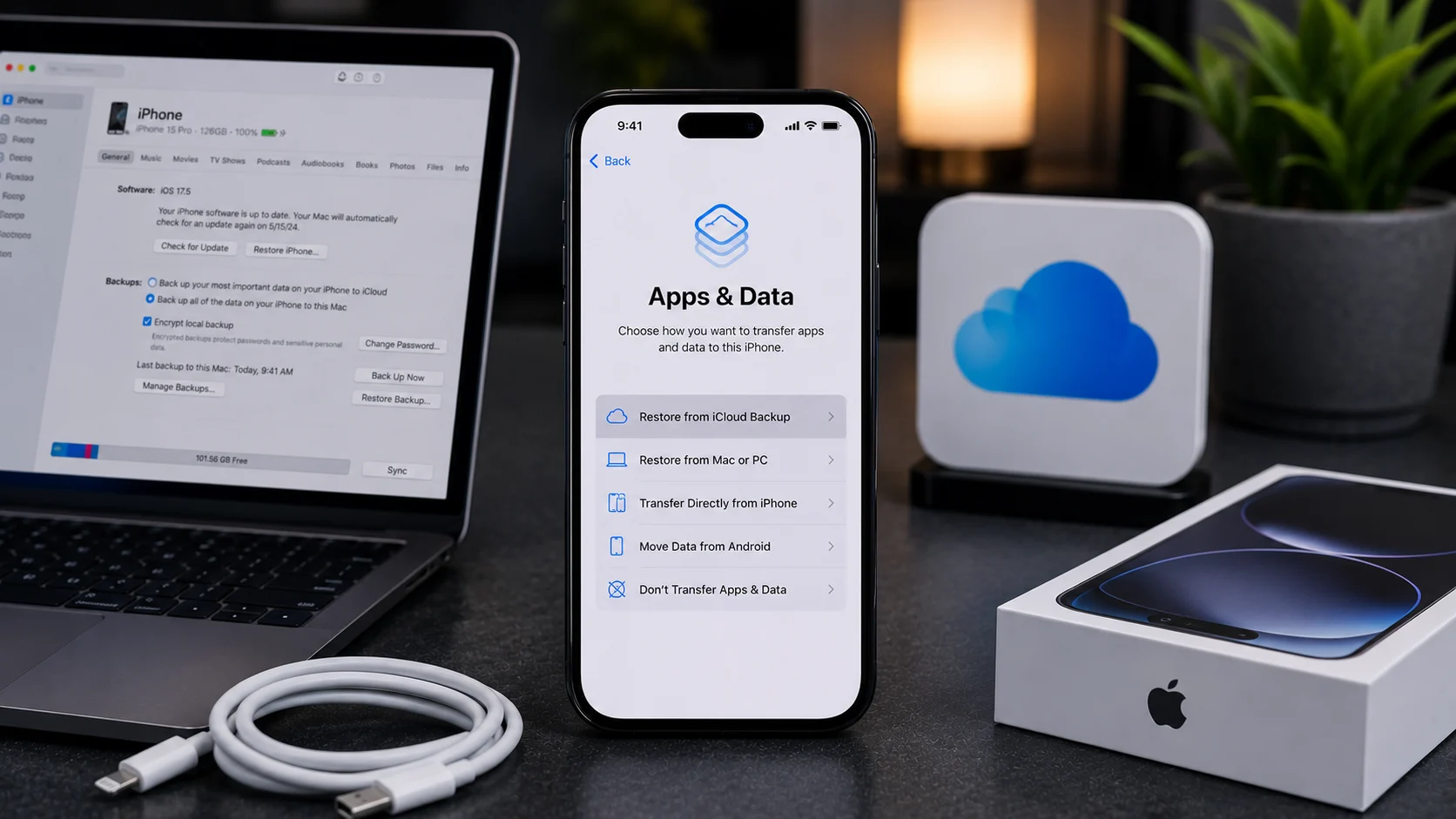
Start from the setup screen (the “Hello” screen you see after a reset or on a new phone). Follow the on-screen steps until you reach “Apps & Data.” Select “Restore from iCloud Backup.” Sign in with your Apple ID. Choose the most recent backup from the list (check the date and size to make sure it’s the right one).
The restore begins downloading your data over Wi-Fi. Keep the phone connected to Wi-Fi and plugged into power throughout the process. The initial restore takes 15 to 60 minutes depending on backup size, but apps will continue downloading in the background for a while after.
Restore from Mac (Finder)
If you backed up to a Mac running macOS Catalina or later, Finder handles the restore.
Connect your iPhone to the Mac with a cable. Open Finder and select your iPhone in the sidebar. Click “Restore Backup.” Select the backup you want and click “Restore.”
If the backup was encrypted (recommended, since encrypted backups include saved passwords and Health data), you’ll need to enter the encryption password you set when creating the backup.
Restore from PC or Older Mac (iTunes)
Connect your iPhone to the computer. Open iTunes. Click the small phone icon near the top of the iTunes window. Click “Restore Backup.” Choose your backup and click “Restore.”
Same encryption password requirement applies if the backup was encrypted.
What Gets Restored (and What Doesn’t)
Backups restore most of your data: photos, messages, contacts, app layouts, settings, call history, and app data. Music and movies purchased from iTunes are re-downloaded from your account, not stored in the backup itself.
Things that don’t transfer through a backup: anything stored only in apps that require a separate login (like WhatsApp message history unless backed up within the app first), Apple Pay cards (you’ll need to re-add them), and Touch ID / Face ID (you’ll set these up again on the restored phone).
If the Restore Fails
If an iCloud restore stalls or fails, check your Wi-Fi connection. Weak or interrupted Wi-Fi is the most common reason. Switch to a stronger network if possible.
If a computer restore fails, try updating iTunes or Finder to the latest version. Also make sure you have enough free space on the iPhone for the backup data.
If neither method works and the phone is stuck in a loop, a DFU (Device Firmware Update) restore through a computer can force a clean iOS installation. This erases everything and installs a fresh copy of iOS, after which you can attempt the backup restore again.
For a full walkthrough on backing up before you get to this point, see our guide on how to back up your smartphone before repair. And if you need to reset the phone first, here’s how to factory reset an iPhone.
After a Repair With Us
If you bring your iPhone to our Albuquerque shop for a screen replacement, battery swap, or other repair, your data stays on the phone in almost every case. We don’t wipe devices unless the repair specifically requires it (which is rare).
If you did factory reset before coming in and need help restoring afterward, we’re happy to walk you through it at the shop. Schedule your repair and let us know if you have questions about the backup process ahead of time.