

Why Is Your Phone’s Sound Not Working?
When your phone suddenly goes silent, the problem usually falls into one of two categories: a software setting got changed by accident, or something is physically wrong with the speaker hardware.
Most of the time, it’s the first one. A toggle got flipped, Do Not Disturb turned on, or an app overrode your system volume. These are easy to fix in a few minutes.
If the software checks don’t solve it, you’re likely looking at a hardware issue (damaged speaker, water damage, or a failing audio chip) that needs a professional diagnosis.
Check Silent Mode and Volume First
On iPhones, look at the small switch on the left side of the phone. If you see an orange line, silent mode is on. Flip it toward the screen to re-enable sound.
On Android phones, press the volume up button on the side and make sure the slider is turned up. Then go to Settings > Sound and check the individual sliders for media, ringtone, notifications, and alarms. These are all independent of each other, so your ringtone could be at full volume while media audio is muted.
This catches the problem about 40% of the time.
Test Whether the Speaker Actually Works
Before assuming hardware failure, test it through your settings.
On iPhone: go to Settings > Sounds & Haptics. Drag the Ringer and Alerts slider back and forth. If you hear the click sound, your speaker hardware is fine and the issue is software-related.
On Android: go to Settings > Sound and tap on any ringtone to preview it. If it plays, the speaker works.
If nothing plays during these tests, try plugging in wired headphones or connecting to a Bluetooth speaker. If audio works through external output but not the built-in speaker, the internal speaker is the problem.
Clean the Speaker and Microphone Openings
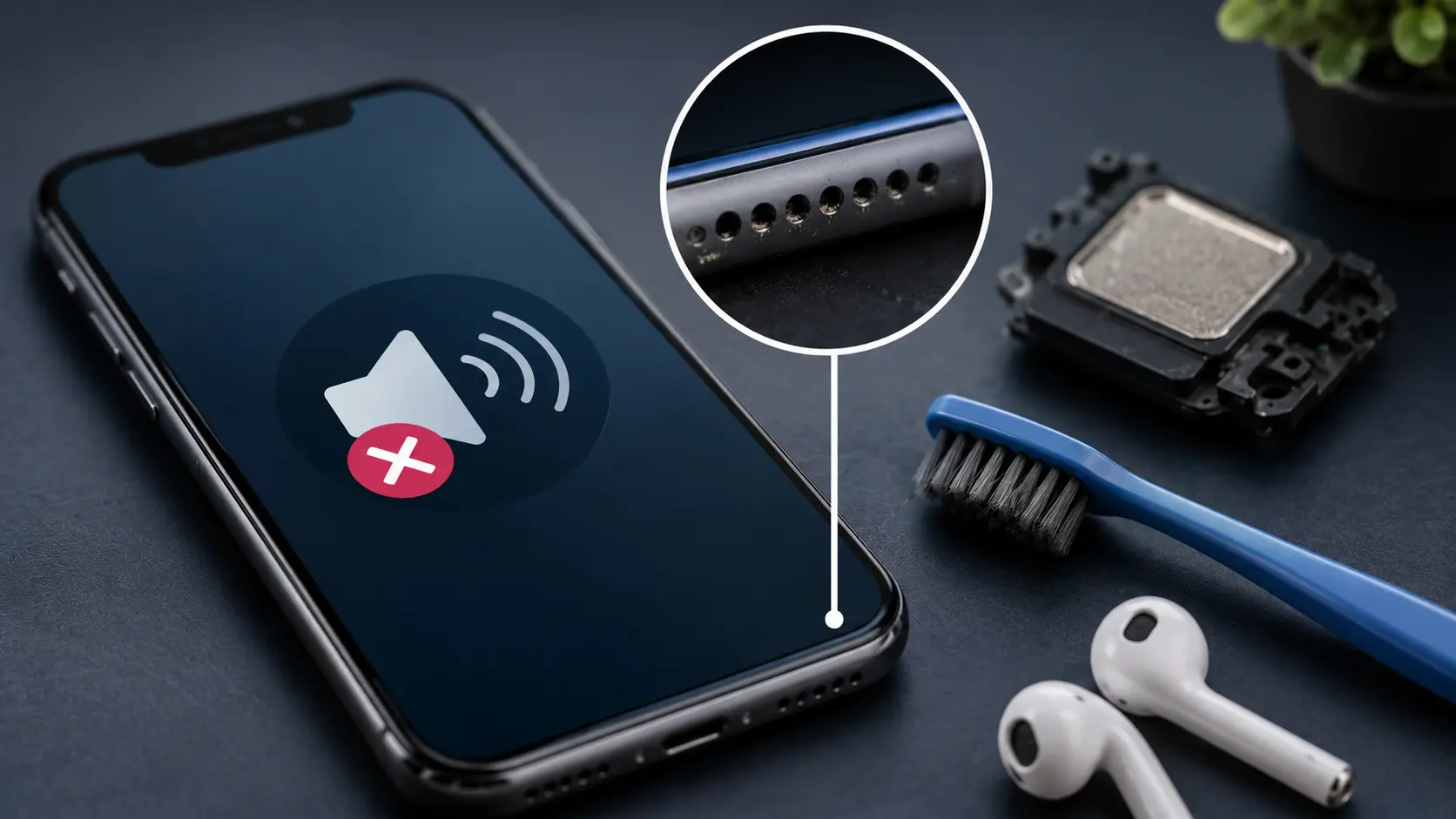
This one gets overlooked constantly. Lint from pockets, dust, and debris build up in the speaker grilles and muffle or block sound entirely.
Use a clean, dry, soft-bristled brush (a clean toothbrush works well) and gently brush across the speaker openings at the bottom of the phone and near the earpiece at the top. For stubborn buildup, hold a can of compressed air at a 45-degree angle and give it a short burst. Don’t blow directly into the opening, as that can push particles deeper inside.
Avoid using liquids, toothpicks, or anything metal. These can puncture the speaker membrane or push debris further in.
Disable Do Not Disturb and Focus Modes
On iPhone: open Settings > Focus > Do Not Disturb and make sure it’s turned off. Also check the Control Center for the crescent moon icon. If it’s highlighted, tap it to disable.
On Android: go to Settings > Sound > Do Not Disturb and check for any active schedules or automatic rules. Some phones also have “Bedtime Mode” or similar features that can suppress audio.
Newer iPhones have multiple Focus modes (Work, Personal, Sleep) that can selectively mute different types of audio. Check all of them if you’re getting sound in some situations but not others.
Reset Network Settings (For Call Audio Issues)
If the problem is specifically during phone calls (the other person can’t hear you, or you can’t hear them), the issue might be network-related rather than speaker-related.
On iPhone: Settings > General > Transfer or Reset iPhone > Reset > Reset Network Settings.
On Android: Settings > System > Reset Options > Reset Wi-Fi, Mobile & Bluetooth.
This clears saved Wi-Fi passwords and Bluetooth pairings, so you’ll need to reconnect those afterward. But it often fixes choppy call audio, one-sided conversations, and intermittent sound drops during calls.
Check Individual App Audio Settings
If sound works everywhere except one specific app, the problem is inside that app. Many apps (games, music players, video apps, social media) have their own internal volume controls that operate separately from system volume.
Open the app, look for a settings or audio section, and make sure the in-app volume is turned up and not muted.
When Software Fixes Don’t Work
If you’ve gone through every step above and still have no audio, the speaker hardware itself is likely damaged. This can happen from water exposure (even brief splashes), a hard drop that shifted internal components, or gradual wear over time.
How We Handle Speaker Repairs
Speaker and audio issues are one of the most frequent walk-in repairs at our Albuquerque shop. We run a quick diagnostic to confirm whether it’s the main speaker, earpiece speaker, or the audio IC on the board.
For iPhones, we carry genuine replacement parts and can swap a speaker in about 20 to 30 minutes. For Samsung Galaxy phones and other Android devices, the turnaround is similar. If the issue turns out to be board-level (a failing audio chip), we do micro soldering in-house rather than sending your phone out.
You can schedule a free diagnostic or just walk in during business hours.