

Why It Matters Whether Your iPhone Parts Are Original
Apple designs each iPhone component to work together as a system. When a third-party repair shop installs a cheap aftermarket screen or battery, the phone still functions, but not the way it should. Colors look different, touch response lags, battery health reporting breaks, and in some cases, features like True Tone or Face ID stop working entirely.
If you bought a used iPhone, had it repaired somewhere before, or just want peace of mind, there are several ways to check whether the parts inside your phone are genuine Apple components.
Use the Built-In Parts and Service History
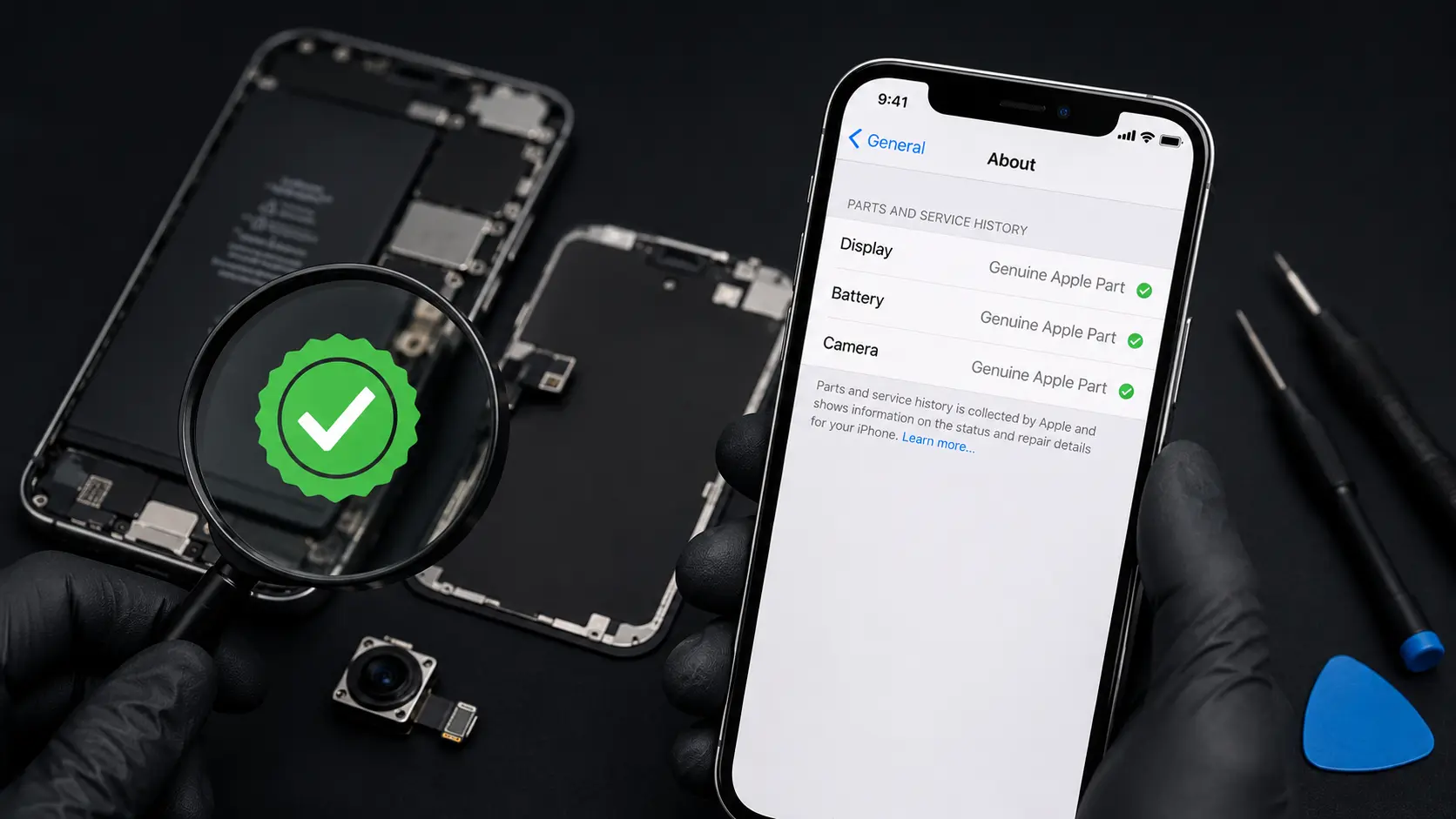
Starting with iOS 15.2, Apple added a Parts and Service History section that tells you exactly which components have been replaced and whether they’re genuine.
Go to Settings > General > About. Scroll down and look for “Parts and Service History.” If this section doesn’t appear, no parts have been replaced on your device.
If it does appear, you’ll see a list of components (Display, Battery, Camera, etc.) with one of these labels:
“Genuine Apple Part” means the component is an authentic Apple part and was installed properly.
“Unknown Part” means the part could not be verified as genuine. This typically appears when aftermarket parts are used.
“Non-Genuine Part” is self-explanatory. The component is a third-party replacement.
This check takes about 10 seconds and gives you the clearest answer.
Check Battery Health for Authenticity Clues
Go to Settings > Battery > Battery Health & Charging.
If the battery is genuine, you’ll see a Maximum Capacity percentage and a Peak Performance Capability status. If the battery is not genuine or not recognized by Apple’s system, you’ll see a message saying “Unable to verify this iPhone has a genuine Apple battery. Health information not available for this battery.”
This doesn’t necessarily mean the battery is bad. It means Apple’s software cannot verify its origin, which is common after third-party repairs that used non-certified parts.
Visual Checks You Can Do Without Opening the Phone
Look at the screen color temperature. Hold your iPhone next to another iPhone (same model, ideally) with a white screen displayed on both. If your screen has a noticeable yellow, blue, or greenish tint compared to the other, it may be an aftermarket display.
Check True Tone functionality. Go to Settings > Display & Brightness and look for the True Tone toggle. If it’s grayed out or missing entirely, the display was likely replaced with a non-genuine part. True Tone requires calibration data that only Apple and Apple-authorized parts carry.
Test the haptic feedback. Type on the keyboard with haptics enabled. Genuine Apple screens have consistent, precise haptic response. Aftermarket screens often feel slightly “off,” with haptics that are either too strong, too weak, or slightly delayed.
What to Do If Your Parts Aren’t Genuine
If you discover non-genuine parts and the phone is working fine, you don’t necessarily need to rush to replace them. But there are reasons to consider it:
Non-genuine batteries can swell or degrade faster, creating a safety risk. Aftermarket screens are more prone to cracking again because the glass composition is different from Apple’s Ceramic Shield. Insurance claims and trade-in valuations can be affected by non-genuine parts.
Why We Use Genuine Apple Screens
At our Albuquerque shop, every iPhone screen replacement uses genuine Apple displays. We’re one of the few independent repair shops in the area that does this. The reason is straightforward: aftermarket screens cause callbacks. Customers come back with touch issues, color complaints, or True Tone problems, and the only fix is doing the repair again with the right part.
Genuine parts cost us more, but they hold up, and every screen replacement we do comes with a lifetime warranty. If you want to understand how screen technology differs across devices, our LCD vs OLED comparison explains the distinction.