

Why Backing Up Matters Before a Repair
Most phone repairs don’t touch your data. Screen replacements, battery swaps, and charging port repairs leave your files exactly where they are. But there are situations where data can be at risk: a repair that requires a motherboard replacement, a phone that needs to be factory reset to resolve a software issue, or a device with severe water damage where data recovery is uncertain.
Backing up takes a few minutes and gives you a safety net regardless of what the repair involves.
Backing Up an iPhone
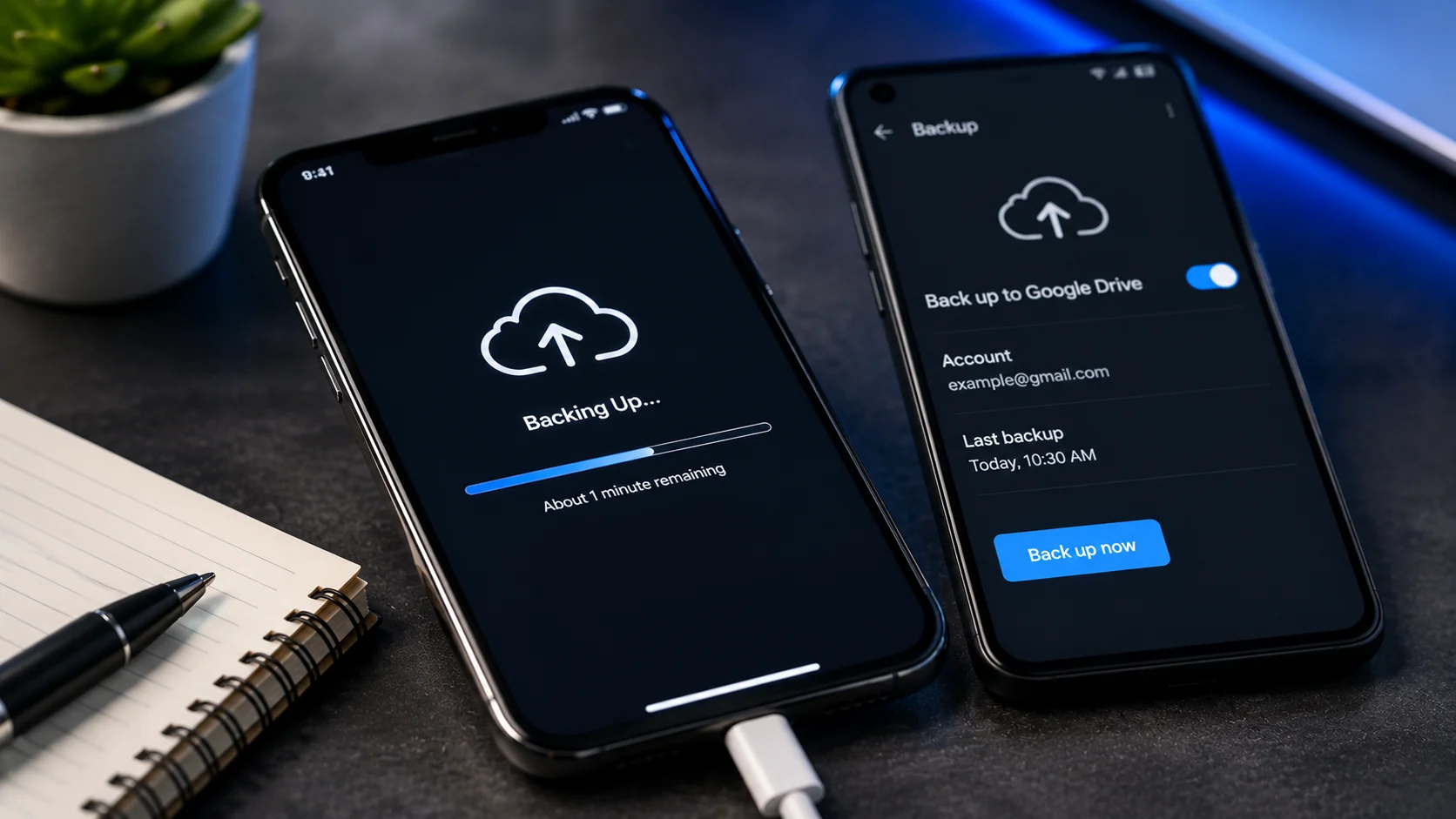
iCloud (simplest method): Go to Settings > [Your Name] > iCloud > iCloud Backup > Back Up Now. Your phone needs to be connected to Wi-Fi. The backup includes photos, app data, messages, settings, and most of what’s on your phone.
If you see a message saying you don’t have enough iCloud storage, you can temporarily upgrade to a larger plan for the backup (even the 50GB plan at $0.99/month is enough for most people) and downgrade afterward.
Computer backup (more complete): Connect your iPhone to a Mac (Finder) or PC (iTunes) with a cable. Select your phone when it appears. Click “Back Up Now.” For a truly complete backup, check “Encrypt local backup” before starting. Encrypted backups include saved passwords, Health data, and Wi-Fi settings that unencrypted backups skip.
Backing Up an Android Phone
Google backup: Go to Settings > Google > Backup (path varies slightly by manufacturer). Toggle on “Back up to Google Drive.” Tap “Back up now.”
This covers contacts, app data, call history, SMS, device settings, and photos (if Google Photos backup is enabled). Check Settings > Google > Photos to make sure photo backup is turned on and has finished syncing.
Samsung-specific: Samsung phones have an additional backup option through Samsung Cloud. Go to Settings > Accounts and backup > Samsung Cloud > Back up data. This catches Samsung-specific items like home screen layouts, Samsung Notes, and Samsung Health data.
What Backups Don’t Cover
Some app data requires in-app backup. WhatsApp, for example, stores message history in its own backup system (WhatsApp > Settings > Chats > Chat Backup). If you don’t back up within the app, your message history won’t be in your iCloud or Google backup.
Banking apps, authenticator apps (Google Authenticator, Authy), and some gaming apps store data locally. Check whether these apps have their own export or backup options before bringing the phone in.
Backing Up Before Visiting Our Shop
If you’re bringing your phone to our Albuquerque location for an iPhone repair or Samsung repair, your data stays on the device in the vast majority of cases. We don’t wipe phones as part of standard repairs.
That said, backing up is always a smart move, especially for phones with water damage or severe physical damage where outcomes are less predictable. If you need help with the backup process, let us know when you schedule your repair and we’ll walk you through it.
Once the repair is done and you’re ready to restore your data, our guide on how to restore an iPhone from backup covers every method. If a reset was needed first, here’s the factory reset walkthrough.