

Why Your Mobile Data Is Slow
A slow data connection usually comes down to one of five things: weak signal strength, too many apps using bandwidth in the background, corrupted network settings, carrier throttling after hitting your data cap, or (less commonly) a hardware problem with your phone’s antenna or modem.
Most of the time, you can fix it yourself in a few minutes. Here are nine methods that work on both iPhone and Android.
1. Restart Your Phone
It sounds basic because it is, but a restart clears temporary network glitches and forces your phone to reconnect to the nearest cell tower. Hold the power button, shut down completely, wait 10 seconds, then power back on.
If your data was sluggish because of a background process hogging resources or a stuck network connection, this alone fixes it.
2. Toggle Airplane Mode On and Off
This is a faster alternative to restarting. Turn on Airplane Mode (from the Control Center on iPhone or Quick Settings on Android), wait 10 to 15 seconds, then turn it off.
This forces your phone to drop its current connection to the cell tower and re-establish a fresh one. If your phone was connected to a distant or congested tower, it will often pick up a closer, less crowded one on the reconnect.
3. Check Your Signal Strength
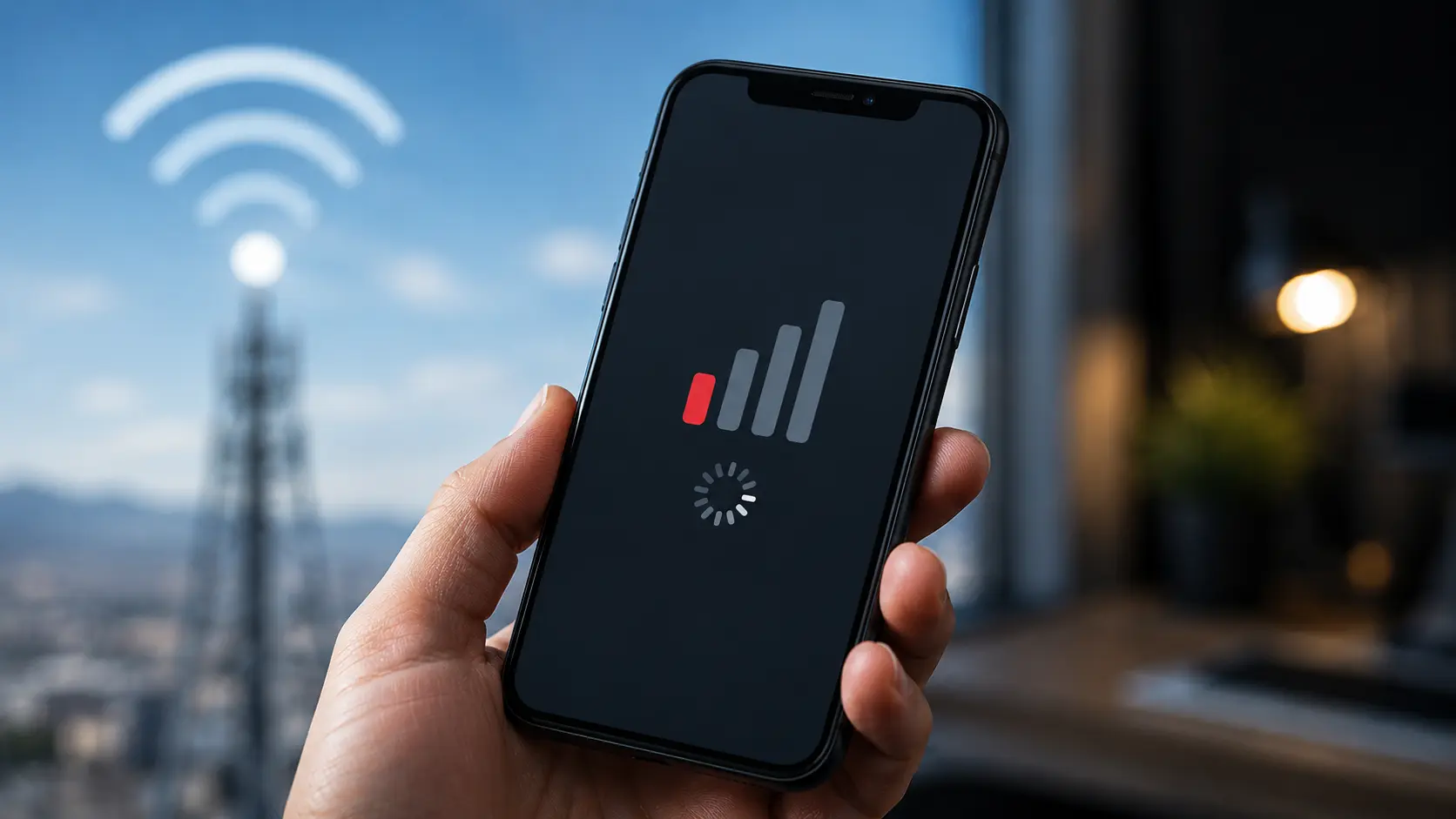
If you’re in a building with thick walls, underground, or far from a cell tower, your phone struggles to maintain a stable connection. Check the signal bars at the top of your screen. One or two bars usually means the connection is weak and data speeds will reflect that.
Moving closer to a window, stepping outside, or going to a higher floor can make a noticeable difference. If you consistently have weak signal at home or work, a Wi-Fi connection is a more reliable option for data-heavy tasks.
4. Disable Low Data Mode or Data Saver
Both iPhone and Android have built-in features that limit background data usage to save bandwidth. These are helpful when you’re near your data cap, but they also slow down your connection noticeably.
On iPhone: Settings > Cellular > Cellular Data Options > turn off Low Data Mode.
On Android: Settings > Network & Internet > Data Saver > turn off.
If these were enabled (sometimes automatically by your carrier’s profile), disabling them can immediately improve speeds.
5. Reset Network Settings
Corrupted network settings from software updates or carrier profile changes can quietly throttle your data speed.
On iPhone: Settings > General > Transfer or Reset iPhone > Reset > Reset Network Settings.
On Android: Settings > System > Reset Options > Reset Wi-Fi, Mobile & Bluetooth.
This clears all saved Wi-Fi passwords and Bluetooth pairings, so note those down first. But it restores your cellular connection to a clean state.
6. Close Background Apps Using Data
Apps running in the background (social media, email, cloud backup, streaming) consume bandwidth even when you’re not actively using them.
On iPhone: Settings > General > Background App Refresh. Turn this off entirely or selectively for apps you don’t need updating constantly.
On Android: Settings > Apps > select each app > Mobile Data & Wi-Fi > turn off “Allow background data usage” for non-essential apps.
7. Clear Your Browser Cache
If the slowness is mainly when browsing, your browser cache might be bloated.
On iPhone (Safari): Settings > Safari > Clear History and Website Data.
On Android (Chrome): Chrome > three-dot menu > Settings > Privacy and Security > Clear Browsing Data.
8. Check for Carrier Throttling
Many carriers reduce your data speed after you reach a monthly threshold (often marked as “unlimited” plans with fine print about deprioritization). Check your carrier’s app or call them to find out if you’ve been throttled.
If throttling is the issue, your options are upgrading your plan, waiting until the billing cycle resets, or connecting to Wi-Fi for the rest of the month.
9. Scan for Malware (Android)
Android devices can pick up malware that runs in the background and consumes both data and processing power. If your data is slow and your battery is draining unusually fast, run a scan using Google Play Protect (Settings > Security > Google Play Protect > Scan).
iPhones are far less susceptible to this due to Apple’s sandboxing, but if your iPhone is jailbroken, the risk exists.
When It’s a Hardware Problem
If none of the steps above fix your slow data, the problem might be physical. A damaged antenna, a loose cellular connector from a previous drop, or a failing modem chip can all cause persistent data issues that software resets won’t solve.
At our Albuquerque shop, we run a cellular radio diagnostic that tests signal reception, antenna performance, and modem function. If the hardware is the issue, we can repair it in-house. Book a free diagnostic or just walk in.