

No Signal? Start Here
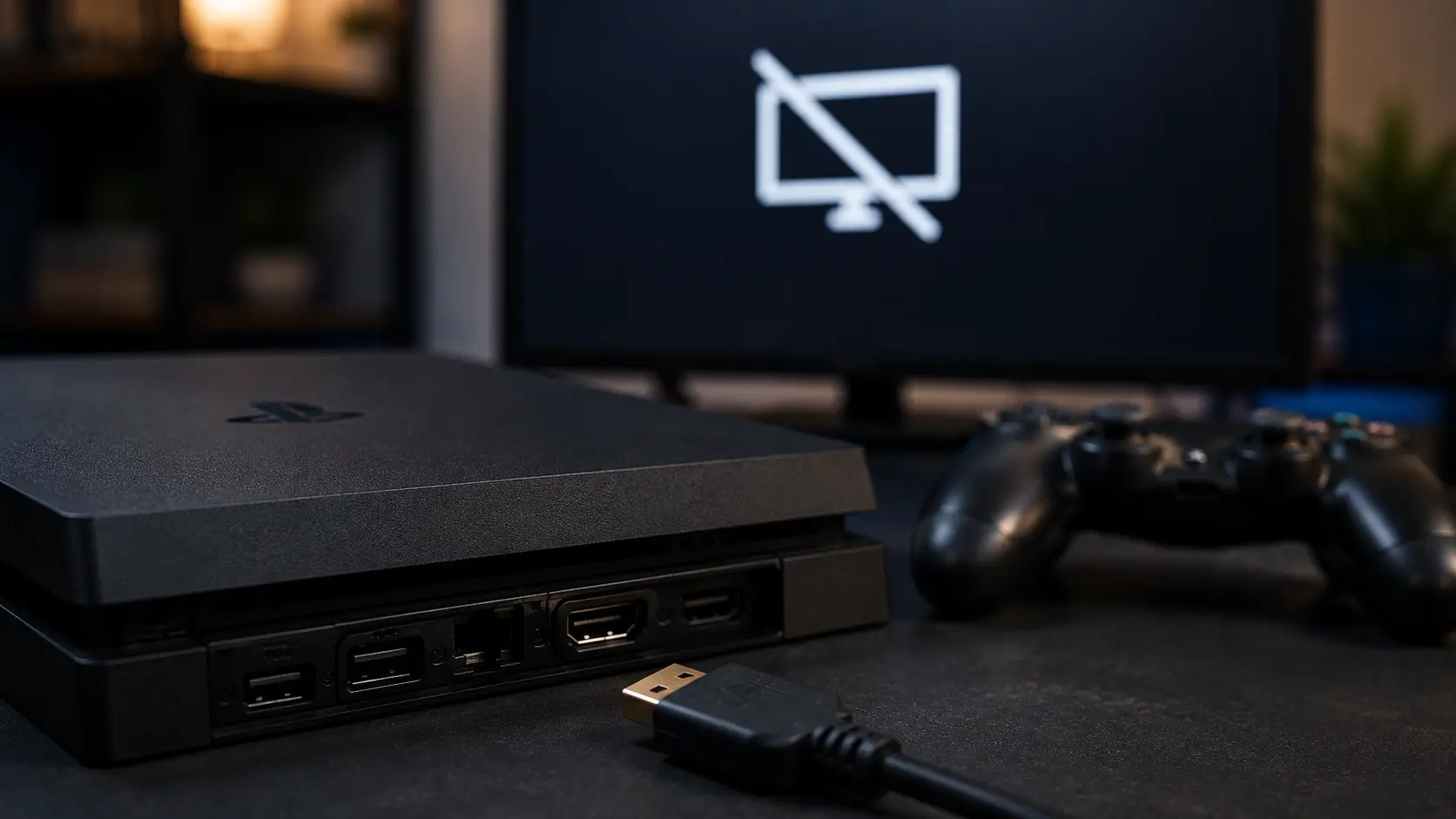
When your PS4 won’t display anything on your TV, the screen stays black, or you see a “No Signal” message, the problem is almost always related to the HDMI connection. This could be the cable, the TV input, the PS4’s video output settings, or a physically damaged HDMI port on the console.
Let’s work through each possibility.
Check the HDMI Cable
Unplug the HDMI cable from both the PS4 and the TV. Inspect both ends for bent pins, frayed connectors, or visible damage. Plug it back in firmly on both ends, making sure it clicks into place.
If you have a second HDMI cable, swap it in. HDMI cables can fail internally without any visible damage. This is the single most common cause of “PS4 no signal” issues, and a $10 cable swap fixes it.
Try a Different HDMI Input on the TV
TVs have multiple HDMI ports, and individual ports can fail. Plug the cable into a different HDMI input (HDMI 2 instead of HDMI 1, for example) and switch the TV’s input source to match.
Also try connecting the PS4 to a completely different TV or monitor. If it works on another display, the issue is with your TV, not the console.
Boot the PS4 in Safe Mode
If the cable and TV are fine but you’re still getting no display, the PS4’s video output resolution may be set to something your TV can’t handle. Safe Mode forces the PS4 to output at the lowest resolution (480p), which every TV supports.
To enter Safe Mode: turn off the PS4 completely (not rest mode). Hold the power button until you hear two beeps (about 7 seconds). The first beep happens immediately, the second after about 7 seconds. Connect your controller with a USB cable and press the PS button.
From Safe Mode, select “Change Resolution” and set it to Automatic. The PS4 will restart and negotiate the correct resolution with your TV.
If Safe Mode doesn’t display either, the issue is hardware-related.
Check for HDMI Port Damage
Look closely at the HDMI port on the back of your PS4. Use a flashlight. Common signs of damage:
Bent or missing pins inside the port. A loose or wobbly port housing (it should feel solid, not shift when you touch it). Burn marks or discoloration around the port opening.
HDMI port damage on PS4s is extremely common. The port is soldered directly to the motherboard, and repeatedly plugging and unplugging cables (or tripping over a cable and yanking the connector) can crack the solder joints or bend the internal pins.
If you notice any of these signs, the port needs to be replaced. This is a board-level repair that involves desoldering the damaged port and soldering a new one in place. It’s not something you can do with basic tools.
For a deeper look at HDMI failure symptoms, we’ve covered signs your game console needs HDMI repair in a separate post.
Other Possible Causes
Power supply failure: If the PS4 doesn’t turn on at all (no beep, no light), the problem isn’t HDMI. The power supply or the APU may have failed.
HDCP handshake issues: Some TVs and capture cards have trouble with HDCP (copy protection). Try disabling HDCP in the PS4 settings (Settings > System > Enable HDCP, uncheck it). You’ll need a working display to access this, so use Safe Mode or a different TV first.
Firmware corruption: In rare cases, a failed system update can corrupt the PS4’s firmware and prevent video output. From Safe Mode, select “Update System Software” or “Initialize PS4” as a last resort (this erases all data).
HDMI Port Repair at Our Shop
HDMI port replacement is one of our specialties at our Albuquerque game console repair shop. Most repair shops in the area can’t do this because it requires micro soldering on the motherboard, which needs specialized equipment and experience.
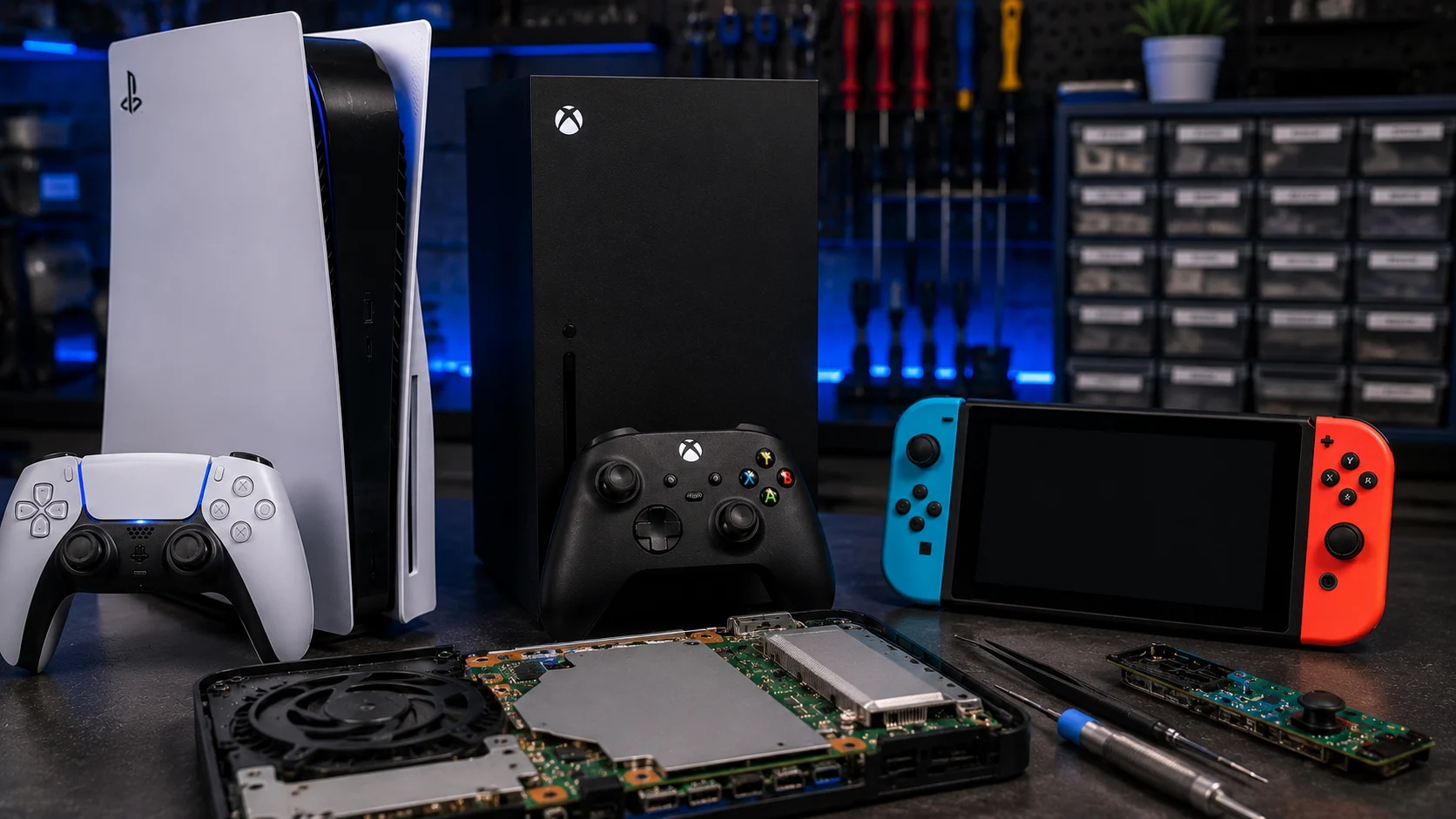
We handle PS4, PS5, Xbox One, Xbox Series X/S, and Nintendo Switch HDMI repairs in-house. Typical turnaround is same-day for straightforward port replacements. If you’re not sure whether your port is damaged, bring the console in for a free diagnostic.