

When You’d Want to Factory Reset
A factory reset erases everything on your iPhone and returns it to the state it was in when it came out of the box. The most common reasons to do this:
You’re selling or giving the phone to someone else. You’re trading it in toward a new device. You’re bringing it to a repair shop and want your data wiped first. The phone has a persistent software issue (freezing, crashing, boot loops) that regular troubleshooting hasn’t fixed.
Before you reset, there’s one critical step: back up your data. If you skip the backup, everything is gone permanently. We’ve written a separate guide on how to back up your phone before a repair that covers iCloud, iTunes, and direct transfer methods.
Step 1: Back Up Your iPhone
Go to Settings > [Your Name] > iCloud > iCloud Backup > Back Up Now.
If you prefer backing up to a computer, connect your iPhone to a Mac or PC. On Mac (Catalina or later), open Finder. On Windows or older Macs, open iTunes. Select your iPhone and click “Back Up Now.”
Wait for the backup to finish completely before moving on. A partial backup is as good as no backup.
Step 2: Sign Out of iCloud and Apple ID
This is the step people forget, and it causes problems. If you don’t sign out of iCloud before resetting, Activation Lock stays enabled. That means whoever gets the phone next (including a repair technician who needs to test it) won’t be able to set it up without your Apple ID password.
Go to Settings > [Your Name] > scroll to the bottom > Sign Out. Enter your Apple ID password when prompted. Choose whether to keep a copy of your data on the phone (doesn’t matter since you’re about to erase it) and tap Sign Out.
Step 3: Erase the iPhone
Go to Settings > General > Transfer or Reset iPhone > Erase All Content and Settings.
Your phone will ask for your passcode, then your Apple ID password (if you haven’t already signed out of iCloud). Confirm the erase.
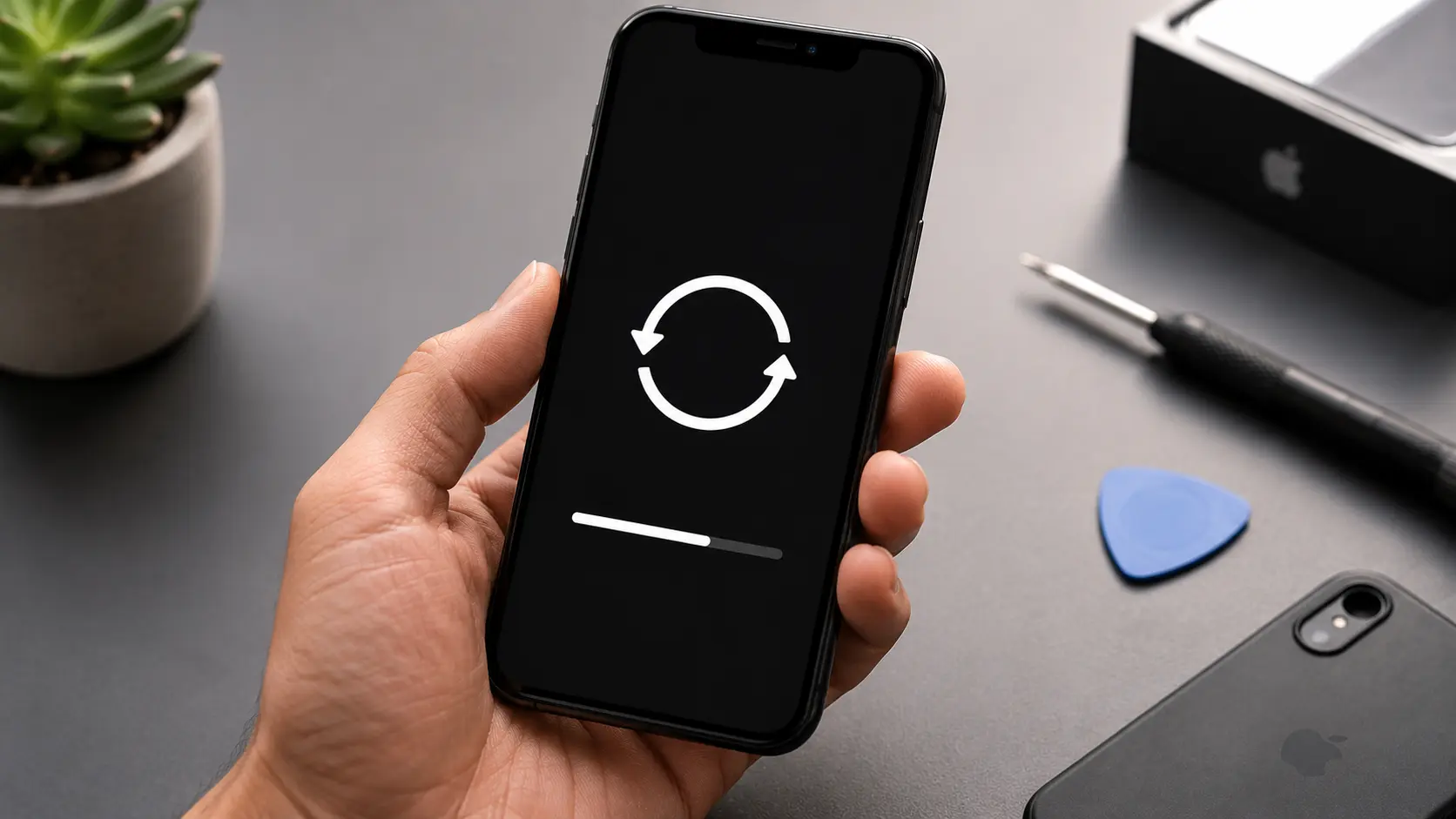
The process takes a few minutes. When it’s done, the phone will restart and show the “Hello” setup screen, which means the reset is complete.
Step 4: Unpair Apple Watch and Other Devices (If Applicable)
If you have an Apple Watch paired to your iPhone, unpair it before the reset. Open the Watch app on your iPhone, tap your watch, tap the “i” icon, and select Unpair Apple Watch. This automatically backs up the watch data to your iPhone.
Same goes for any Bluetooth accessories. While they’ll disconnect automatically during the reset, unpairing them first prevents pairing issues when you set up a new phone.
Factory Reset Without a Passcode
If your iPhone is locked and you’ve forgotten the passcode, you can still reset it using a computer.
Connect the iPhone to a Mac or PC. Put the phone into Recovery Mode (the button combination varies by model, so check Apple’s support page for your specific iPhone). When the Recovery Mode screen appears on the phone, your computer will show an option to Restore. Click it, and the phone will be erased and updated to the latest iOS version.
This method also works for phones that are stuck in boot loops or frozen on the Apple logo.
Resetting Before a Repair Visit
If you’re bringing your iPhone to our Albuquerque shop for a screen replacement, battery swap, or other repair, you don’t necessarily need to factory reset before coming in. We only need the passcode disabled for display and touch testing after the repair is complete.
That said, if you prefer to wipe your data for privacy, go ahead and reset. We can test the hardware without your personal data on the phone. Either way, the repair is covered by our lifetime warranty on screen replacements.